
How to Log AI Agent Emails to Salesforce, HubSpot & Zoho CRM (No Integration Required)
Every email your Karmaflow agent sends can log itself to Salesforce, HubSpot, or Zoho CRM automatically — no API, no integration build, no engineering ticket. One BCC address, set once.
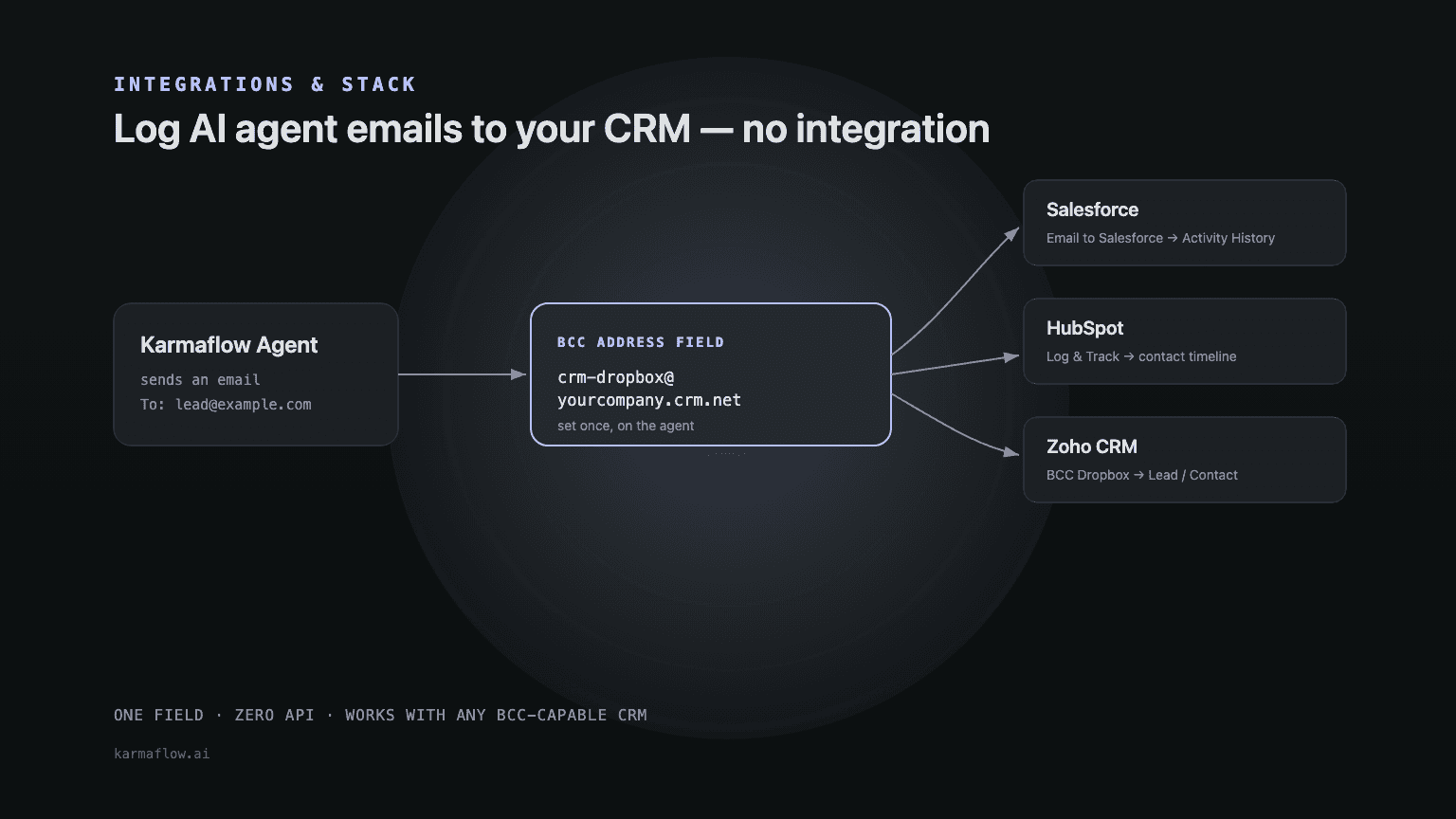
If a Karmaflow agent sends an email to a lead or a customer, does it show up in your CRM?
It should — and getting it there does not require an integration, an API key, or a ticket to your RevOps team. Salesforce, HubSpot, and Zoho CRM (like most CRMs built in the last fifteen years) all ship a quiet, unglamorous feature for exactly this problem: a unique, per-account email address that, when BCC’d on any outgoing email, automatically files a copy onto the matching lead or contact record.
Karmaflow agents have a BCC Address field — on the agent’s Telephony tab, right next to Email From Address, CC Address, and Email Signature — for precisely this reason. Paste your CRM’s logging address in once, and every email that agent ever sends — cold outreach, a support reply, a renewal reminder — logs itself. No middleware, no webhook, no sync job to babysit.
This guide covers what that feature is called in Salesforce, HubSpot, and Zoho CRM, exactly where to find your unique address in each one, and how to wire it into a Karmaflow agent in under two minutes.
Why log agent emails to your CRM
Your CRM stays the single source of truth. Sales and support see every agent-sent email on the same timeline as human-sent ones — no separate "AI activity" log to check, no blind spot in the contact record.
It survives a channel switch. An agent’s email today, a rep’s follow-up call tomorrow, a renewal email next quarter — all land on the same record, in order, regardless of who or what sent them.
It is close to zero build. BCC-to-CRM is a feature every major CRM already ships. There is no OAuth flow, no API rate limit to manage, no integration to maintain when the CRM vendor changes their API. One address, pasted once.
It satisfies audit and compliance asks for free. If Legal or a customer ever asks "show me every email this agent sent this account," the answer already lives on the CRM timeline — not in an agent log you have to export and reconcile by hand.
It works the same way across CRMs. Learn the pattern once — unique address, BCC it, CRM auto-matches by recipient — and it transfers to whichever CRM a given customer runs.
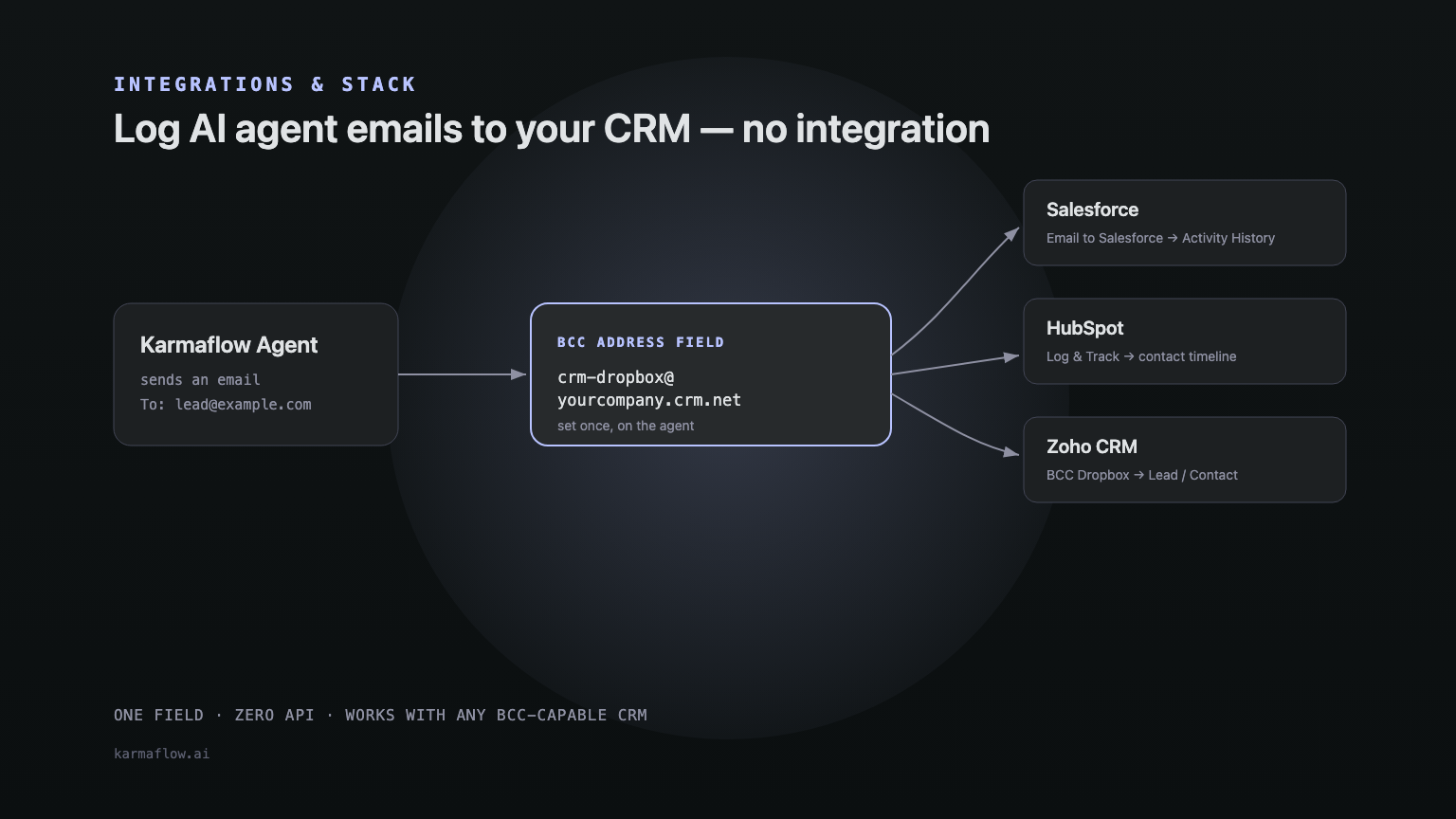
How it works, in one pattern
Every CRM implementation is a variation on the same three steps:
- Find your unique address. Your CRM generates one email address per user (sometimes per org) — something like
you@a1b2c3.2sfdc.netfor Salesforce, or a generated forwarding address for HubSpot and Zoho. - BCC it on outgoing mail. Add that address to the BCC field of any email you send. The recipient never sees it — BCC recipients are invisible to everyone else on the thread.
- The CRM does the matching. Within moments, the CRM reads the actual To recipient of your email, searches Leads and Contacts for a matching address, and logs the email to that record’s activity timeline. If nobody matches, most CRMs will either create a new record or park the email somewhere for manual review, depending on your settings.
The only thing that changes between CRMs is where you find the address and exactly how matching behaves. Here is each one.
Set up in Salesforce: Email to Salesforce
Salesforce calls this feature Email to Salesforce, and every user gets their own address. Salesforce’s own walkthrough, with screenshots of every settings screen below, is here: Email to Salesforce setup, in Salesforce Help.
- Click your avatar → Settings.
- Search for and open My Email to Salesforce (under Email settings).
- Copy the address shown — it follows the pattern
yourname@[unique-id].2sfdc.net. - While you are there, set Automated Contact Matching. This is the setting that decides whether Salesforce also logs the email to Leads, Contacts, or Opportunity contact roles it finds a match for beyond the primary recipient — worth turning on broadly if you want an agent’s email visible from more places than just the exact recipient’s record.
What happens next: Salesforce matches the email’s real recipient against Contact, Lead, and (if enabled) Opportunity contact-role email addresses, then logs it to that record’s Activity History. No match found → it lands on the My Unresolved Items page for manual assignment instead of silently disappearing.
Limits worth knowing: most editions cap this at roughly 1,000 emails per user per day, a default 5 MB attachment limit, and a maximum of 50 matched recipients per email. For a single outbound agent, none of these are likely to bind — but they matter if several agents share one Salesforce user’s BCC address.
Set up in HubSpot: log email with the BCC or forwarding address
HubSpot’s version lives under Settings → Objects → Activities → Email Log & Track, in the Manual Logging section, where your personal BCC/forwarding address is shown for copying. HubSpot’s own step-by-step, with screenshots of that settings tab, is here: Log email in your CRM with the BCC or forwarding address, in HubSpot Knowledge Base.
What happens next: HubSpot matches the actual recipient against existing Contacts. If there is a match, the email logs to that contact’s timeline and rolls up to any associated company or deal. If there is no match, HubSpot creates a new contact record automatically.
The one gotcha to know: HubSpot’s own documentation is explicit that the person you are logging the conversation for needs to be in the To or CC field of the actual email — putting the logging address on BCC is correct, but if your recipient is also only on BCC (rather than To/CC), HubSpot will not create or update their record. In practice this only matters if an agent is silently BCC’ing a real customer rather than emailing them directly, which should not be your setup anyway.
Set up in Zoho CRM: BCC Dropbox
Zoho’s feature is called BCC Dropbox, found at Setup → Channels → Email → BCC Dropbox. Each user gets a unique address, downloadable as a vCard for easy re-use, and it can be regenerated at any time if it ever leaks. Zoho’s own guide, with screenshots of the BCC Dropbox settings page, is here: BCC Dropbox, in Zoho CRM Help.
Before you use it, set the search scope — whether Zoho checks Contacts only, Leads only, or Contacts first and then Leads when it looks for a match. This one setting is worth deciding deliberately rather than leaving on default, especially if your agent emails both leads and existing customers.
What happens next: Zoho matches the recipient’s email address against records in your chosen scope and logs the email — typically within about three minutes, not instantly. If nothing matches, Zoho can create a new Lead or Contact automatically, depending on your configuration.
The one gotcha to know: Zoho only associates emails sent from a verified sender address. If your agent sends from an address Zoho has not verified for BCC Dropbox, the email will not associate even though it arrived. Attachments are capped at 10 MB total.
Salesforce vs. HubSpot vs. Zoho CRM: BCC logging at a glance
| Salesforce | HubSpot | Zoho CRM | |
|---|---|---|---|
| Feature name | Email to Salesforce | Log email with the BCC / forwarding address | BCC Dropbox |
| Where to find it | Settings → My Email to Salesforce | Settings → Objects → Activities → Email Log & Track | Setup → Channels → Email → BCC Dropbox |
| Address format | you@[id].2sfdc.net | Generated forwarding address | Generated address, downloadable as vCard |
| Matches against | Contacts, Leads, Opportunity contact roles | Contacts (+ associated company/deal) | Contacts and/or Leads, by your chosen search scope |
| No match found | Goes to My Unresolved Items | Creates a new contact | Creates a new Lead/Contact (if enabled) |
| Typical delay | Near-instant | Near-instant | Up to ~3 minutes |
| Main gotcha | 1,000 emails/day, ~5 MB attachments per user | Recipient must be in To/CC, not only BCC | Sender address must be verified first |
Point your Karmaflow agent at it
Once you have your CRM’s address, the Karmaflow side takes one field.
- Open the agent’s edit screen and go to the Telephony tab.
- Find BCC Address, right below CC Address and above Email Signature.
- Paste the CRM’s logging address — your Salesforce, HubSpot, or Zoho address from above.
- Save the agent.
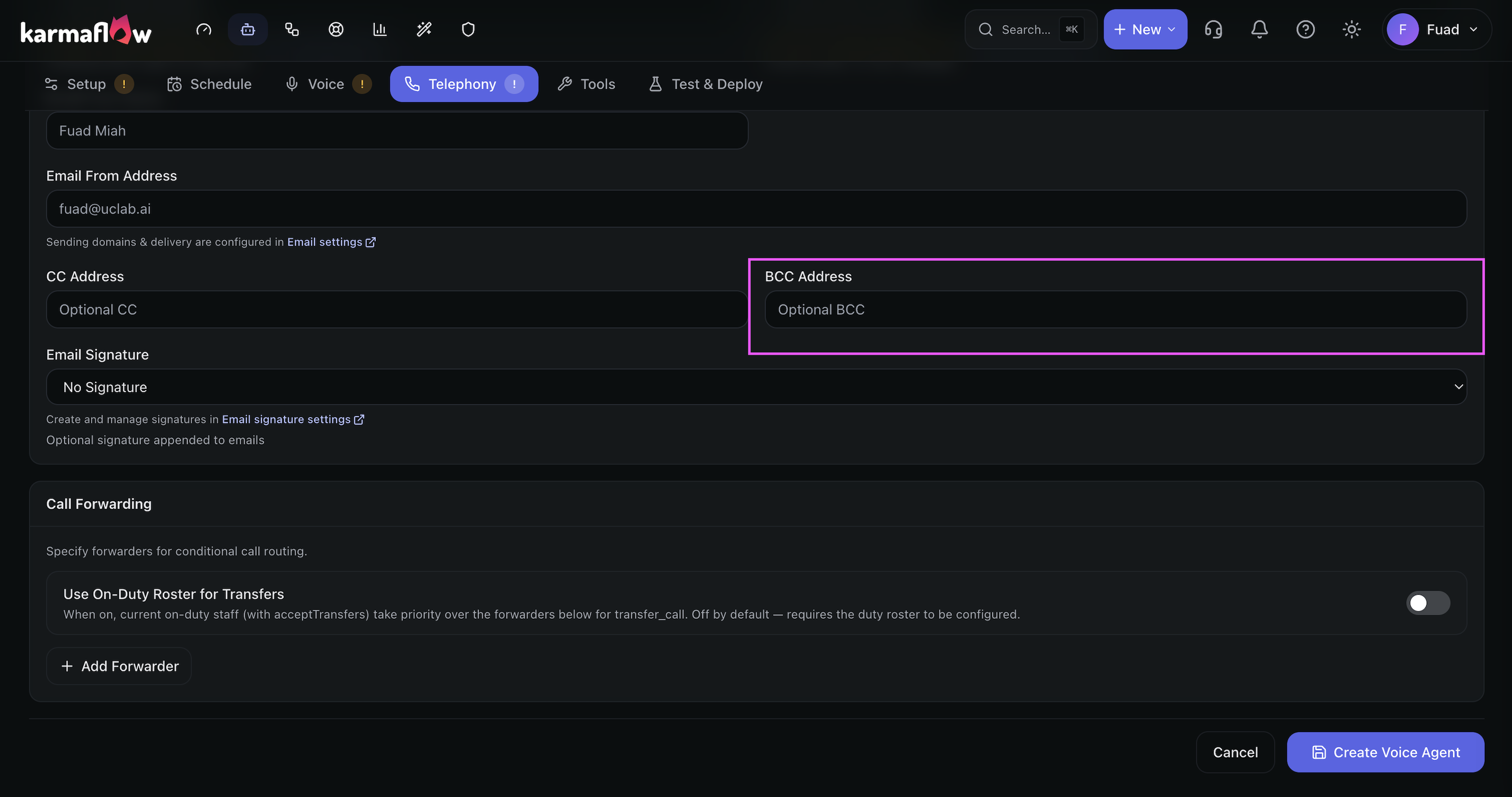
That is the entire integration. Every email the agent sends from that point forward is BCC’d to your CRM’s dropbox address, and your CRM takes it from there using whichever matching rules you set up above. There is nothing to maintain on the Karmaflow side — if you ever rotate or regenerate the CRM address (Zoho, for instance, lets you do this if an address leaks), just paste the new one into the same field.
If you run multiple agents against the same CRM, you can point every agent’s BCC field at the same address, or use a different CRM user’s address per agent — for example, to separate a sales-outreach agent’s activity from a support agent’s activity on two different Salesforce users, if that maps better to how your team already reviews activity.
Frequently asked questions
How do I automatically log AI agent emails to Salesforce, HubSpot, or Zoho without an integration?
BCC every email the agent sends to your CRM’s built-in logging address — Email to Salesforce, HubSpot’s BCC/forwarding address, or Zoho’s BCC Dropbox. In Karmaflow, paste that address into the BCC Address field once, on the agent’s Telephony tab, and every email it sends from then on logs itself.
Where do I find my Email to Salesforce BCC address?
Click your avatar in Salesforce → Settings → search My Email to Salesforce. Your unique address is shown there, in the format you@[unique-id].2sfdc.net. While you are on that page, also check Automated Contact Matching to control whether Salesforce logs to Leads and Opportunity contact roles, not just the exact matching Contact.
Where do I find my HubSpot BCC or forwarding address for logging email?
Go to Settings → Objects → Activities, open the Email Log & Track tab, and copy your personal address from the Manual Logging section.
Where do I find my Zoho CRM BCC Dropbox address?
Go to Setup → Channels → Email → BCC Dropbox. Each user has a unique address there, which you can copy or download as a vCard, and regenerate at any time if needed.
Does BCC-logging create a new Lead or Contact if one does not already exist?
It depends on the CRM and its settings. Salesforce sends unmatched emails to the My Unresolved Items page rather than auto-creating a record. HubSpot creates a new contact automatically. Zoho can create a new Lead or Contact automatically, based on the search-scope setting you choose in BCC Dropbox.
Will the BCC address be visible to the person my agent emails?
No. BCC recipients are never visible to the sender’s To or CC recipients, or to each other — that is what BCC (blind carbon copy) means. Your CRM’s logging address stays invisible on every email it is used on.
Does this work if my Karmaflow agent sends from a custom domain?
Yes, as long as that sending address is recognized by your CRM where required. Zoho specifically requires the sender address to be verified in BCC Dropbox settings before it will associate incoming BCC’d emails — verify your agent’s From address there first if you are on Zoho.
Can one Karmaflow agent log to more than one CRM at once?
Not through a single BCC field with a single address, since each CRM issues its own unique address per user. If you need an agent’s email visible in two CRMs at once, most CRMs (Salesforce included) let you place a logging address in To, CC, or BCC — so you could add a second CRM’s address to the agent’s CC field if your workflow calls for it, though BCC is what each vendor recommends to keep the address invisible to recipients.
Is BCC-to-CRM logging a real integration, or just a workaround?
It is a first-party feature every major CRM vendor ships and documents — not a workaround. Salesforce, HubSpot, and Zoho all built and maintain this specifically so that email sent from outside their platform (a different mail client, a marketing tool, or an agent platform like Karmaflow) still lands on the right record without an API integration.
Set the BCC address once per agent, and your CRM does the rest — no integration to build, and nothing to maintain when your CRM changes its API.
- Integrations & Stack
- CRM
- Salesforce
- HubSpot
- Zoho CRM
- Email Logging
- BCC
- AI Agents
- Compliance